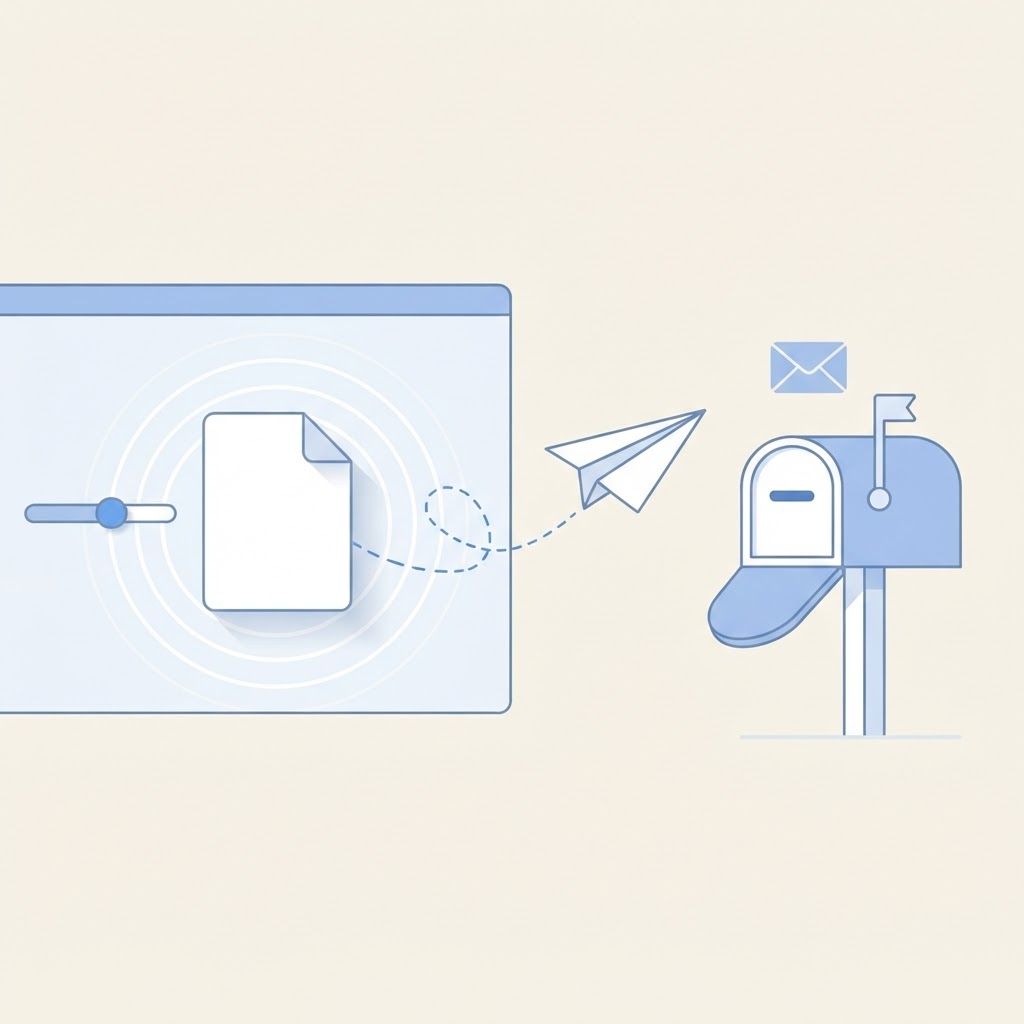
Email servers still enforce size limits, usually between 10 and 25 MB for the whole message. When a PDF is larger than that, the honest fix is to reduce the file instead of fighting the limit. This guide shows how to pick a sensible target and avoid turning a readable document into mush.
Start with a realistic target
Most email situations need the attachment under 10 MB, and many mail providers prefer under 5 MB. Open the Compress PDF tool, choose the target size mode, and enter your limit. The tool works toward your number and tells you plainly if the target cannot be reached safely.
Choose the right compression mode
- Balanced keeps text sharp while shrinking images. This is the right starting point for most documents.
- Light touches only the largest images. Use it when a document must stay close to the original quality.
- Target size iterates harder to approach your limit. It is the choice when the email simply will not send otherwise.
Check the result honestly
Open the compressed file before you attach it. Look at one text page and one image-heavy page. If a scanned page becomes hard to read, compress again from the original with a gentler mode, or ask the recipient whether a link would work instead.
When compression is the wrong answer
A PDF with pages of high-resolution scans has a floor: below it, text stops being readable. If you cannot get under the limit without ruining the file, split the document with the Split PDF tool and send the parts, or export only the needed pages with Extract PDF Pages.
Steps at a glance
- Check your email provider size limit.
- Open Compress PDF and add your file. Nothing is uploaded; the work happens in your browser.
- Choose a mode and a target if needed, then run the compression.
- Review the result, then attach and send.