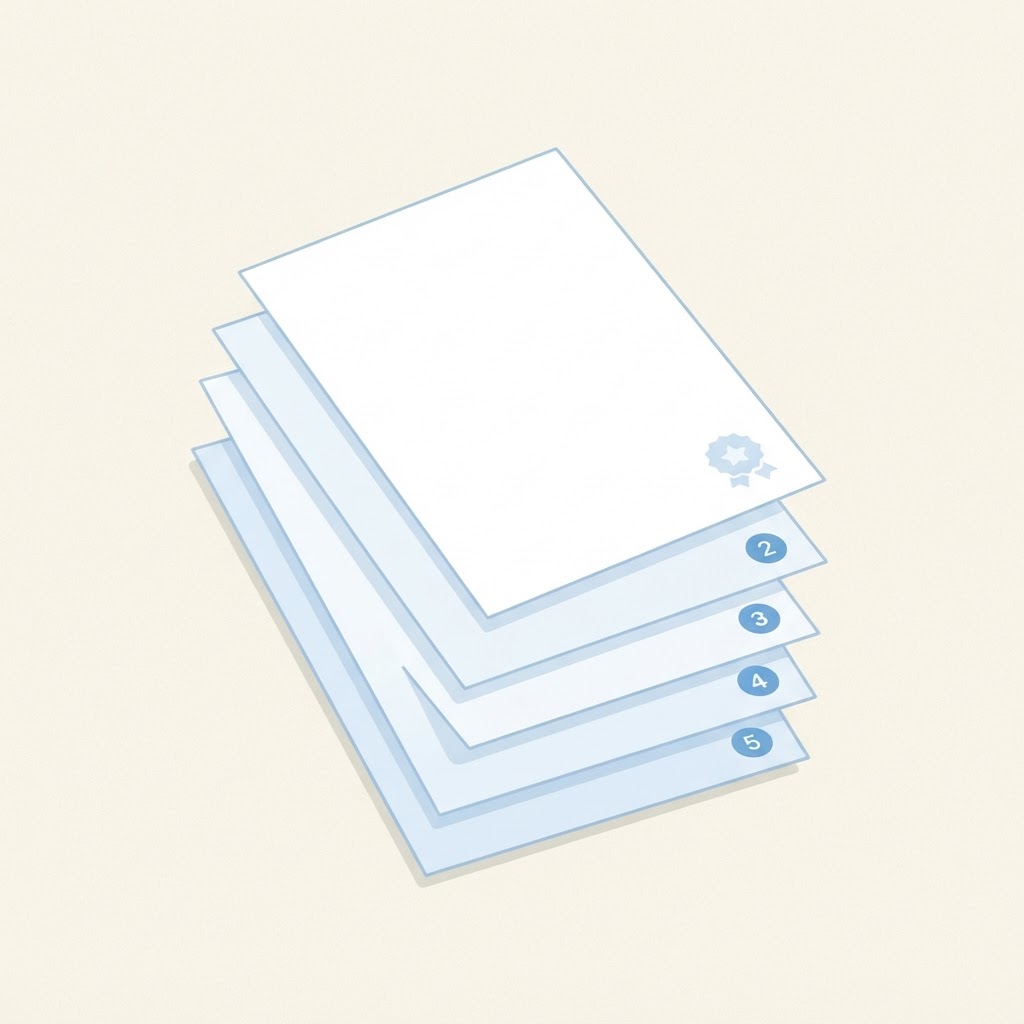
Reports, theses, and proposals often keep a clean cover page while the first content page shows number 1. Getting that right with the Add Page Numbers tool takes one setting: start numbering on page 2. This guide walks through it.
The two settings that matter
- Start numbering on page: set this to 2 so the cover stays clean.
- First number: leave it at 1, so the page after the cover is numbered 1.
The live preview shows exactly where numbers land before you commit, so a quick glance confirms the cover is untouched.
Full walkthrough
- Open the Add Page Numbers tool and add your PDF.
- Choose the position and format. Bottom center is the common convention for reports.
- Set start numbering on page 2 with first number 1.
- Check the preview on a middle page, then run the tool.
- Review the result and download.
Useful variations
- Front matter before the report: if you have a cover plus a table of contents, start numbering on the first content page instead, and set the first number to 1.
- Numbering that skips nothing: to number the cover too, start on page 1 and choose a format such as Page 1 of 12 so totals stay accurate.
- Appending to an existing document: if you merge files first with Merge PDF, number afterward so the sequence matches the final order.
One honest limit
The tool numbers the pages that exist in the file you give it. If you later insert or remove pages, number the document again so the sequence stays truthful.