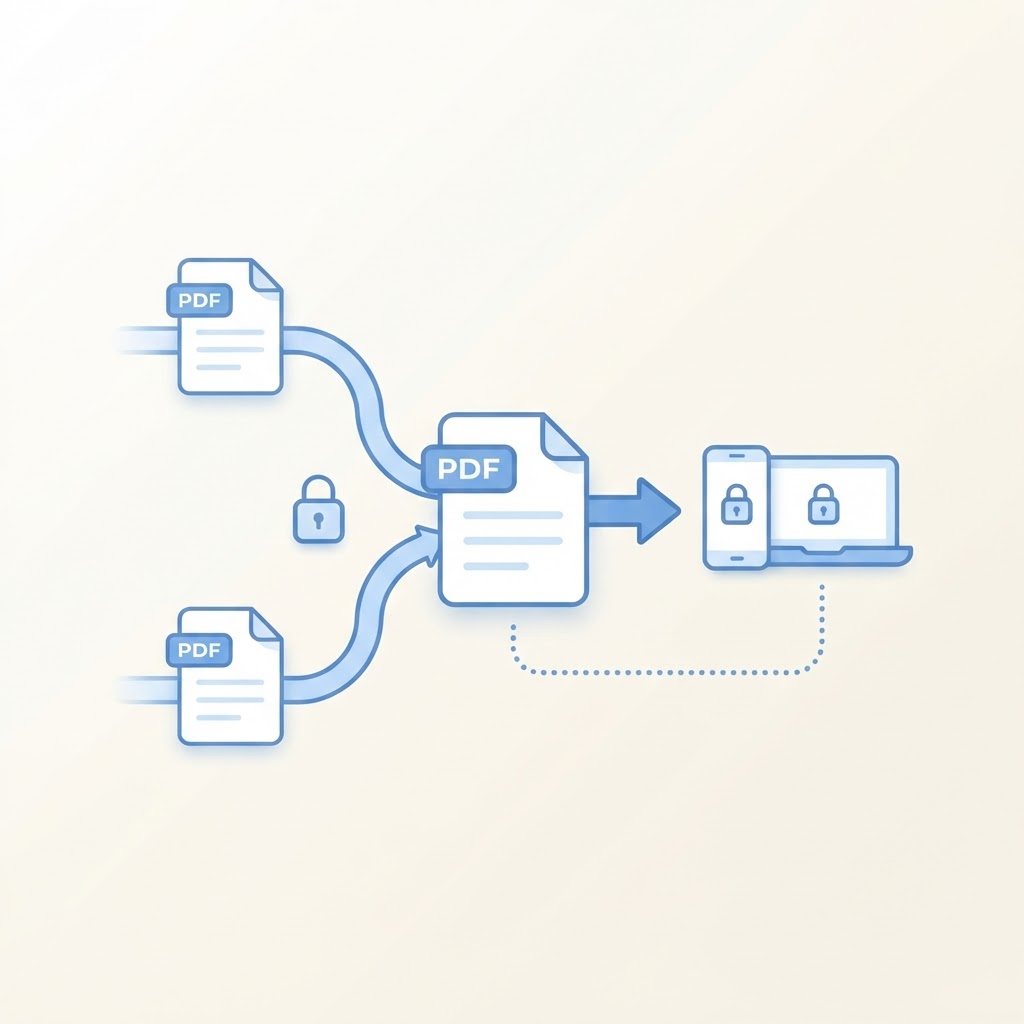
Merging documents is routine for applications, contracts, and reports. The catch is that many free merge sites upload every file you give them. If the documents contain bank statements, medical records, or signed paperwork, that matters. This guide explains how to combine PDFs on PDFToolWorks, where processing happens in your browser and your files never leave your device.
What private means here
When you use the Merge PDF tool, your browser reads the files directly, assembles the new PDF locally, and hands you the download. The site never receives a copy. There is no account, no upload queue, and no stored copy on a server.
Merge in four steps
- Open the Merge PDF tool and add two or more PDF files.
- Drag the files into the exact order you want in the result. Check the sequence twice; this is the step where mistakes happen.
- Run the merge and check the final page count against your expectation.
- Download the combined file.
Tips for clean results
- Open each file first and confirm it displays correctly. A file that errors in your PDF viewer will fail to merge too.
- If one file is a scanned image and another is digital text, the merged document will look mixed. That is expected; merging preserves pages as they are.
- Name the result before downloading so the filename makes sense to the recipient.
A quick privacy checklist before sharing
After merging, flip through the result once. Look for a page from the wrong file, a duplicate page, or personal information that should not travel with the document. Merging is also a good moment to remove pages you do not need, with the Remove PDF Pages tool.